Showing posts with label Check Disk. Show all posts

Monday, March 22, 2010

How can I check the hard disk?


How can I check the hard disk?

Hi all. Hope all is well. In one of my post I was writing about check the hard disk by using DOS. Today I am writing about how to check the hard disk by using a tool. It is not so easy to check the hard disk by using DOS. But I hope everyone can check his hard disk by using the “Check Disk” tool. I think it is so easy to check a disk by using it because it is an object oriented tool. So it is no need to know any specific command for check the hard disk. So that everyone can check his hard disk regularly and it also made the computer faster. It is necessary to check the computer by using “Check Disk” tool or by using DOS command. It checks the hard disk error and solves those errors automatically. For that your computer becomes faster and safer.

Now I am talking the main thing and it is how to run “Check Disk” tool. For run it first of all goes to My Computer and open the properties of any drive for check this drive. For open properties it right clicks on the drive and selects “Properties”. Then you can find a dialogue box. Click on the “Tools” feature. And then click on the “Check now” command. Then the “Check Disk” tool will be opened. Now click

How can I check the hard disk?

on “Automatically fix file system errors” and “Scan for and attempt recovery of bad sectors” option buttons. Then click on “Start” button. After that you can see the process will be run. After sometime this process will be finished and it gives you a message (if you u`se Windows XP then it is not sure that it give you a message for alarming the process is finished).

I hope all can understand how to check the hard disk by using “Check Disk” tool. It is my advice to check the computer regularly. If you will be done it then you could get the best benefit thank you for see this post. If it is useful for you then please give your owner able comment.

Sunday, February 28, 2010

How can I delete temporary files form the computer?#2


how can i delete temporary files form computer

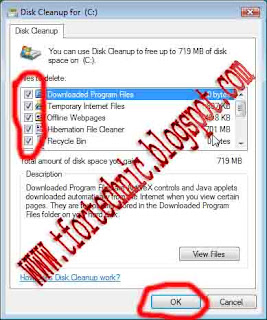
Hi all, what’s up. Hope all is well. In my previous post I am talking about how to delete temporary files manually. But today I want to give you the knowledge of deleting those files automatically. I hope everyone can understand about this. First of all you must learn about temporary file. In my previous post I am talking about it. If you do not sow it then click here at now. There is a tool in the computer who can automatically find the temporary files and who can delete those files easily without any difficulties. The name of the tools is “Disk Cleanup”. You can easily delete the temporary files form computer by using it. For run it first of all open “My Computer”, right click on any drive for remove the temporary files of it. Now click on “Properties” after that you can find a dialogue box. Click on “Disk Cleanup” after that you can find a new dialogue box. There are many option buttons on the dialogue box. Select all of those options. In the right side of those buttons you can see the size of those temporary files. After selecting all of those files click on “OK” button.

how can i delete the temporary files form the computer

By doing this you can remove the temporary files of your selected drive. By following this you can delete all of the temporary files form you computer. But remember that if you follow this then all of the files form “Recycle Bin” also be deleted. Because those files whose are also be identified as temporary files. I hope you can understand what I want to say. Thanks for see it. Now please give your owner able comment.
Monday, February 22, 2010

Check My Disk Drive without using any software

  • Today I am writing about an important event. It has so much importance. Everyone wants to make his computer freer and faster. All ever everyone wants to operate the computer without any problem and more generously. But sometime they face some problem. For that they are so angry about his computer. But it is simple matter. Computer is a machine so that it is not impossible to not facing any failure. If you do not take care your computer properly than you must face problem. You can learn this matter by showing a simple Example: - Suppose you have a cloth. You use it regularly. And this cloth is so nice and it is also so rich. But if you do not take care it, if you do not wash it properly then it losses it beauty. Then you fell so bored and you fell uneasy to wear it. But it is not cloth’s problem. It is your problem. Cloth has no any ability to work; it has no ability to wash itself. It is your work to wash it regularly and clean it. Computer’s problem is also same matter. If you do not take care it you must faces some problem. Here take care means check the drives. We all know that there are must some drives in a computer Hard Disk. Sometime you may load a so much data on the drive. For that it can not work properly and it faces problem. For solve this problem you need to check the drive regularly. You can check the drive by many ways. Today I am saying about a way to check the drive properly and so much easily. It is no needs to have used any other software for do this. You can check your computer’s drive by using DOC. It has a command for checking the drives. For check the drive first of all you must need to run DOC. I talk about opening the DOC in my past post but now I am again saying about the process. First of all click on Start Button. First of all click on Run. Now write down CMD and press Enter or click on Ok. Now you can find the program of DOC. Write here CHKDSK and press Enter. Now the dos check it automatically. After checking the drive it gives you a result. For learn more about CHKDSK write down CHKDSK/? And press on Enter. Then you can find more details about CHKDSK. I hope you all can make your computer more flexible by using the CHKDSK command.
(Thank you for see it and please give your owner able comment).